Basics
Running Your First Interview
May 6, 2025
Introduction
This document will walk you through the full process of running your first interview using Bridgen — from setting up your job description and interview plan to reviewing and analyzing the candidate insights generated by our AI. It includes all the essential steps to help you conduct structured, bias-free interviews and make more confident hiring decisions from day one.
1. Planning your Interview
1 .1 Define your Position Details
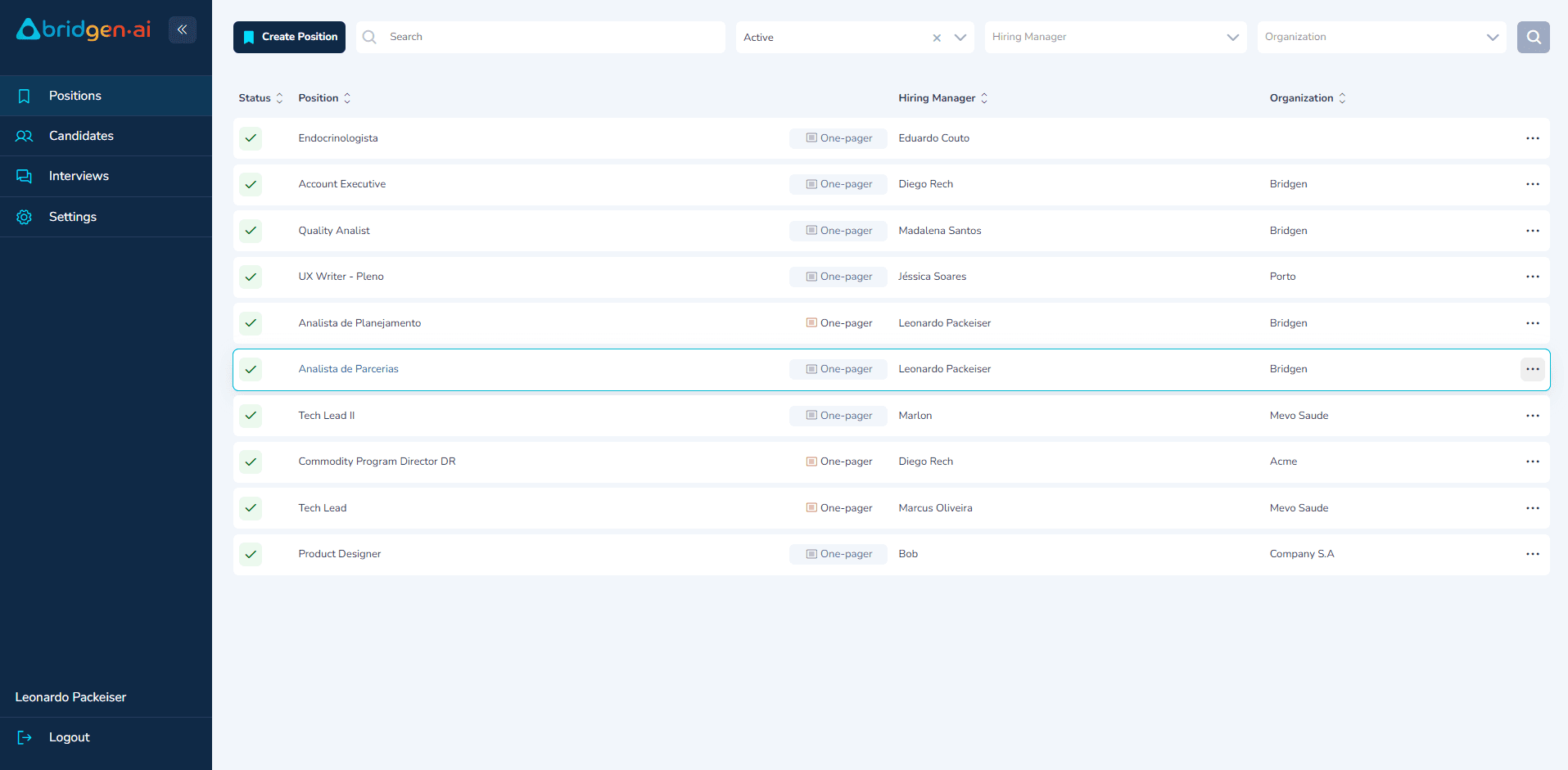
To start your hiring setup, go to the Positions tab and click “Create Position”.
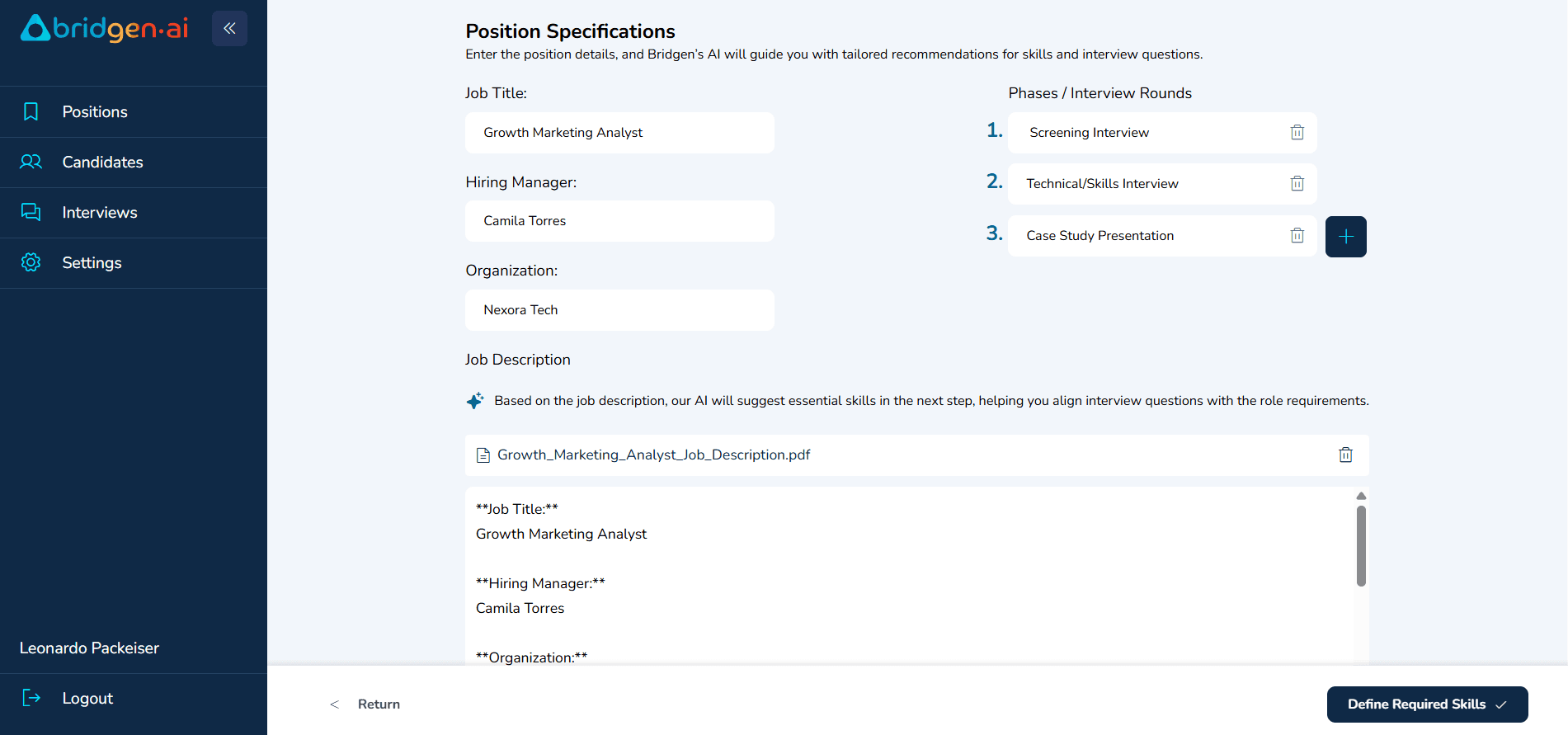
On the Position Specifications screen fill in key role details:
Job Title
Hiring Manager
Organization
Number of interview rounds (e.g., Screening, Technical, Case)
Then, upload a PDF or paste the job description text. Bridgen’s AI will analyze it and suggest the most relevant skills — which will guide the structure of your interviews.
1 .2 Define the required skills for each phase
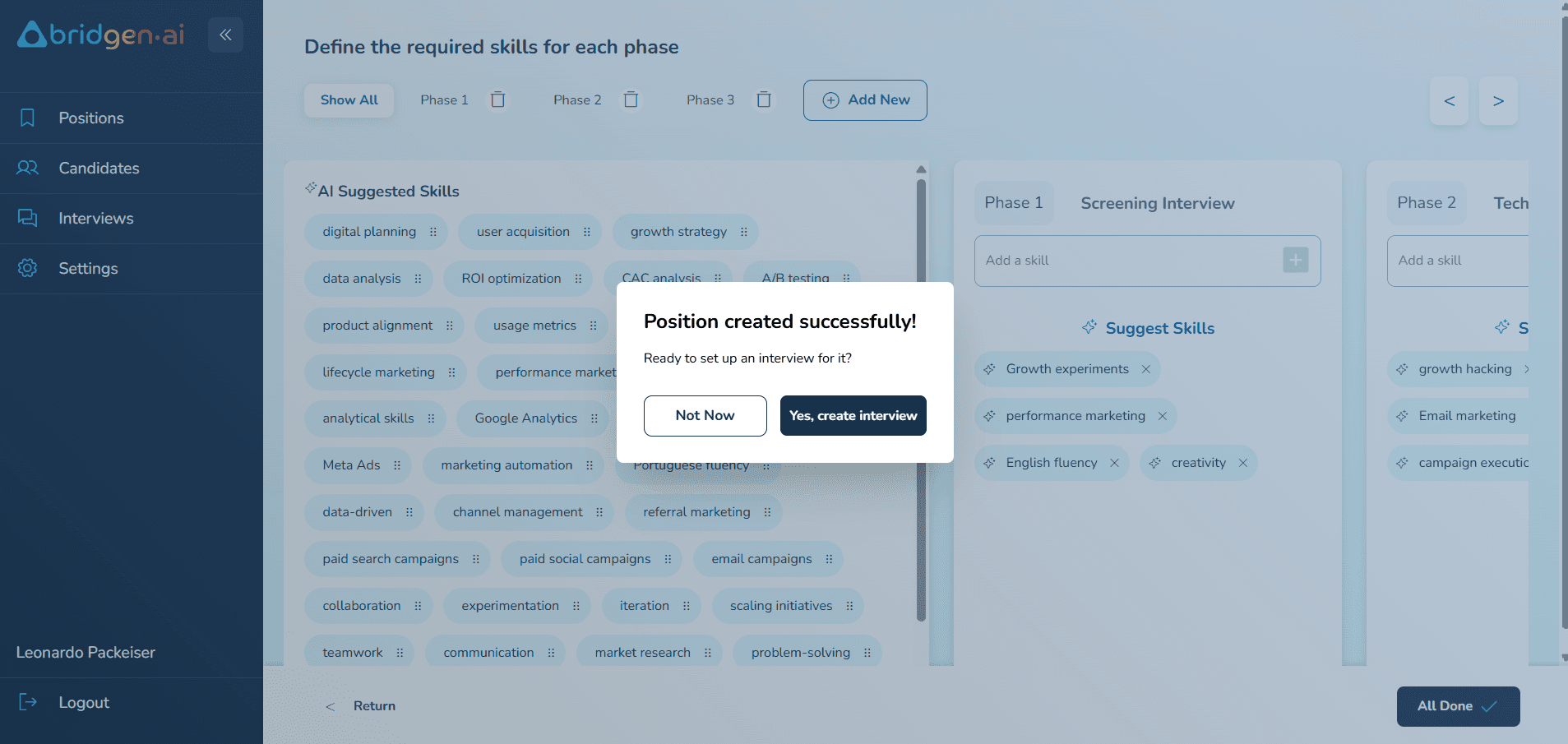
In this step, the interview phases you previously configured (e.g., Screening Interview, Technical Skills Interview, Case Study Presentation) will appear as columns on the screen.For each phase, click on “Suggest Skills” to receive AI-generated recommendations based on the job description and role requirements.
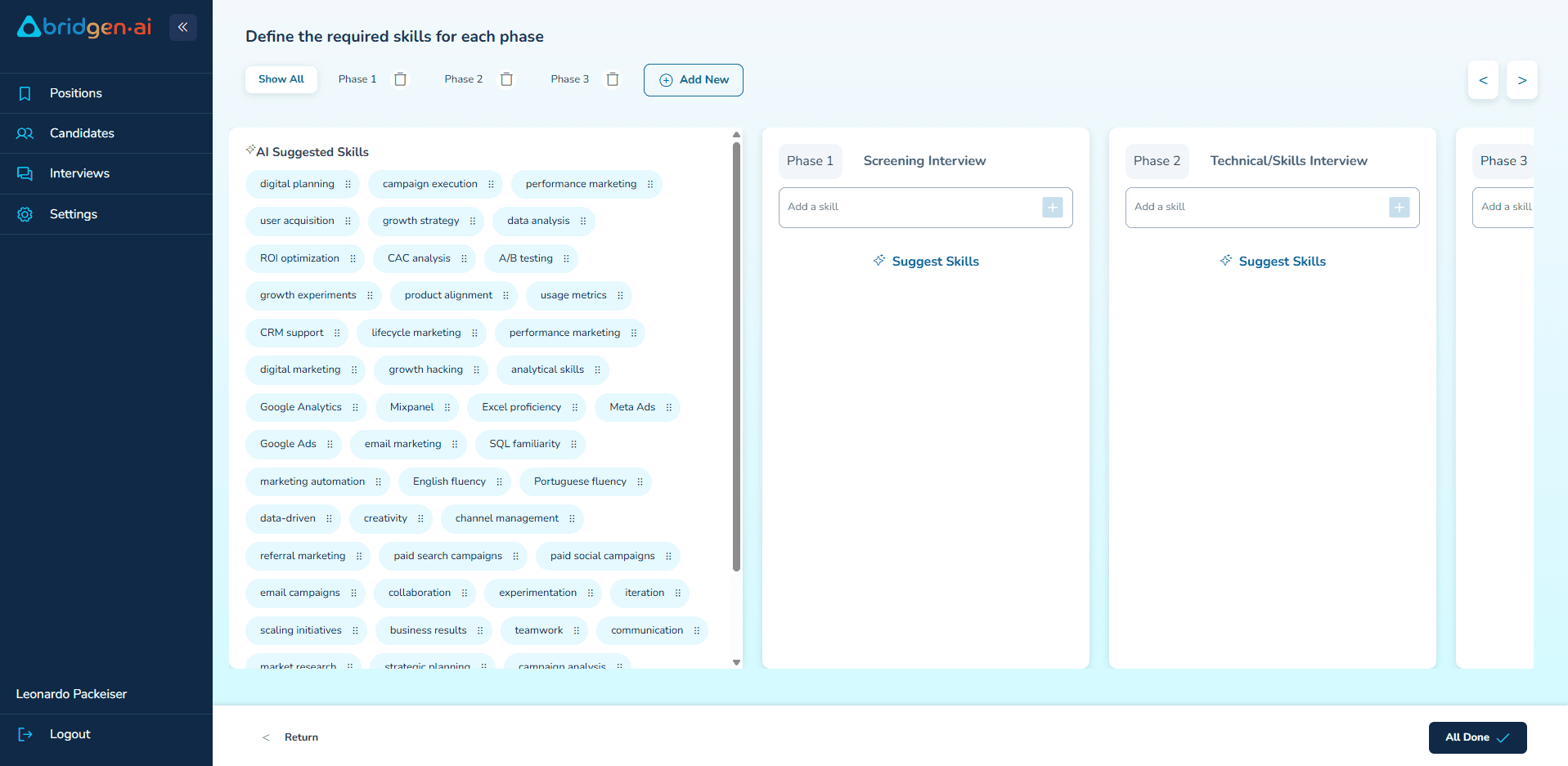
You can then drag and drop the most relevant skills into each interview round. This selection of skills will serve as the foundation for generating tailored questions for each phase. The more precise your skill mapping, the more aligned and insightful your interviews will be — ensuring each candidate is evaluated fairly and consistently across the hiring process.
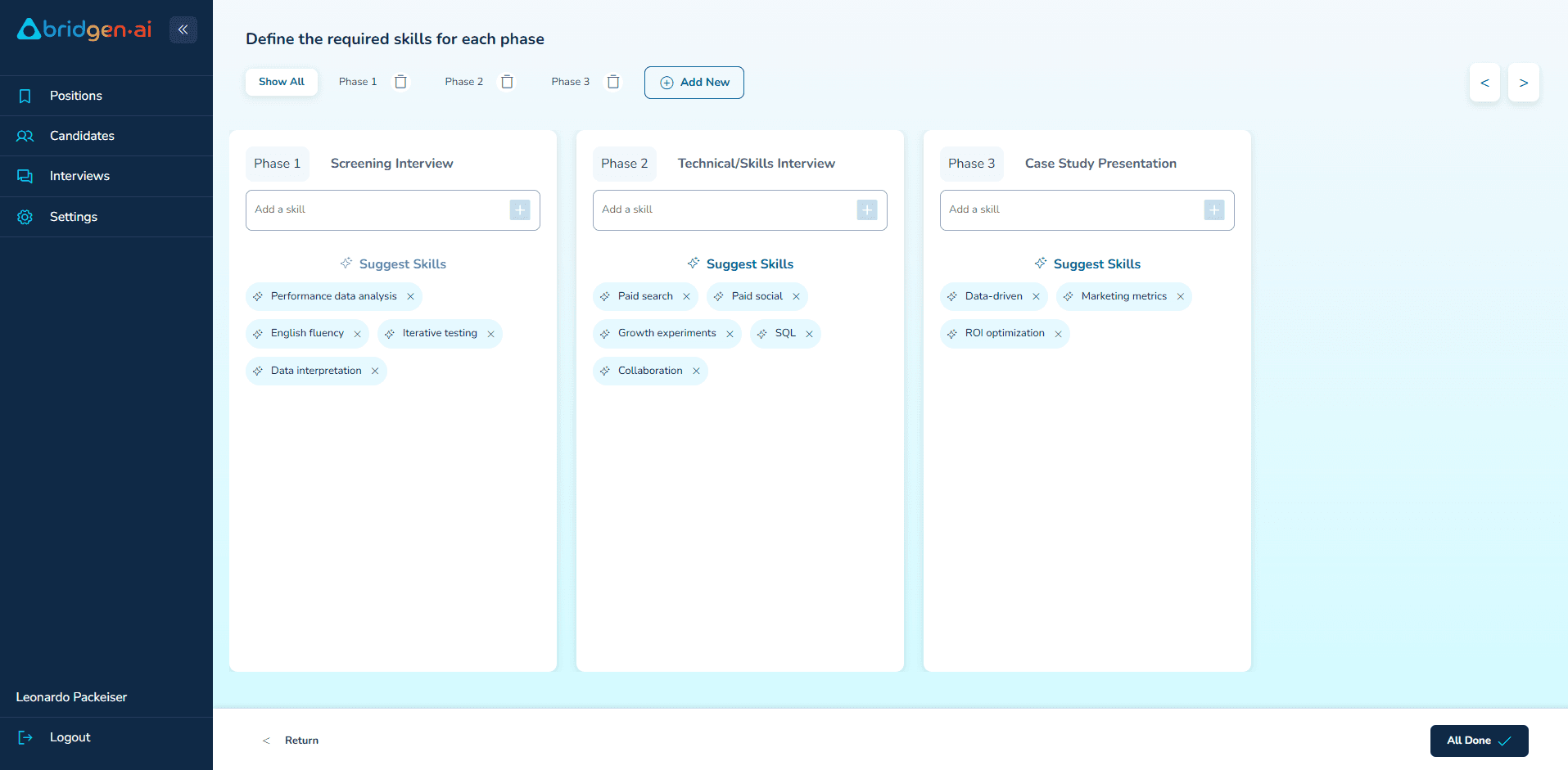
After defining the required skills for each phase, click on “All Done” at the bottom right of the screen. A confirmation popup will appear — click “Yes, create interview” to proceed with setting up your interview.
1 .3 Choose Participants
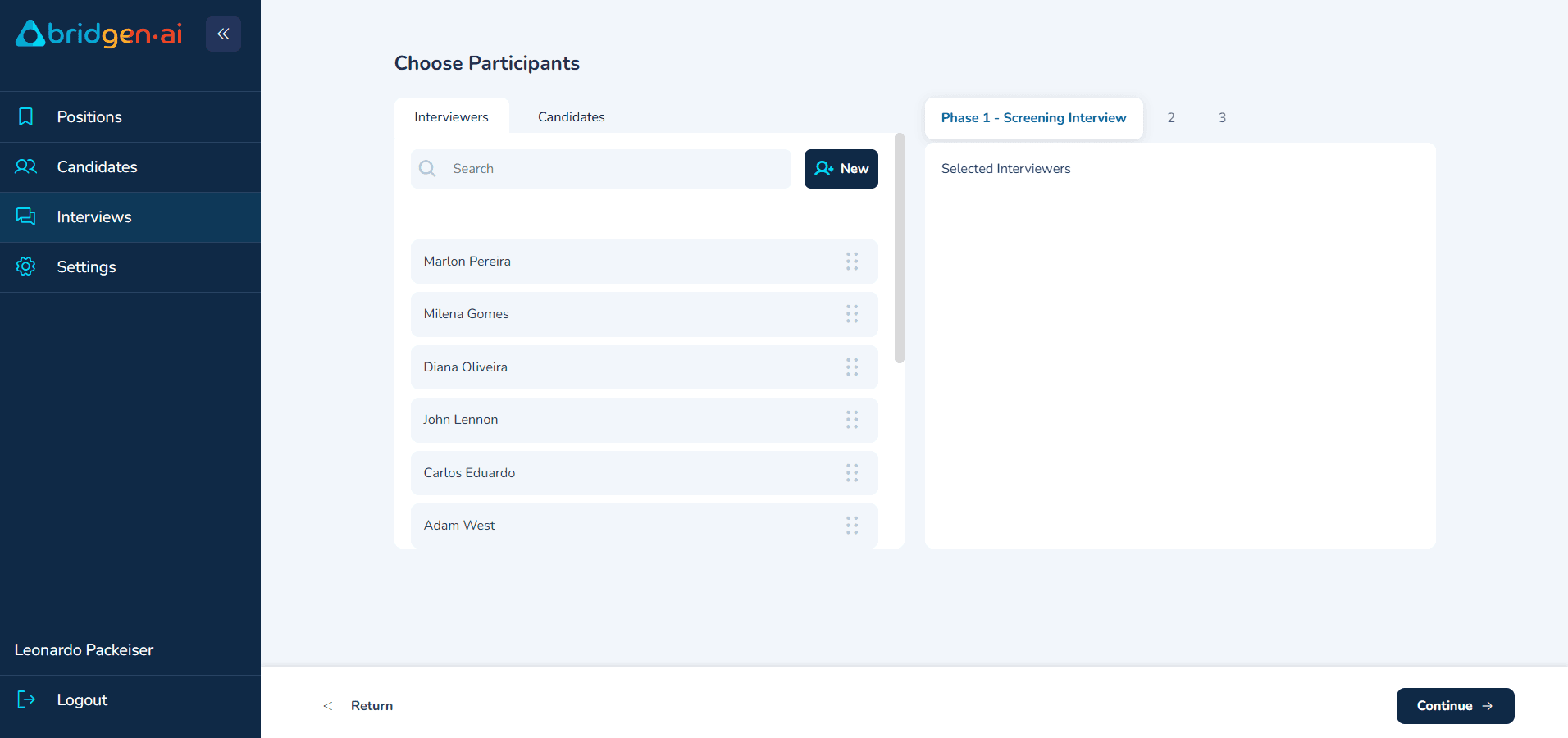
In this step, assign interviewers and candidates for each interview phase.
Use the tabs at the top (e.g., Phase 1 - Screening Interview) to select the phase. Then:
Choose interviewers from the list or search bar
Click “New” to add someone if needed
Drag and drop interviewers to the right panel
Switch to the “Candidates” tab to assign who will be interviewed.
When all participants are set, click “Continue” to proceed.
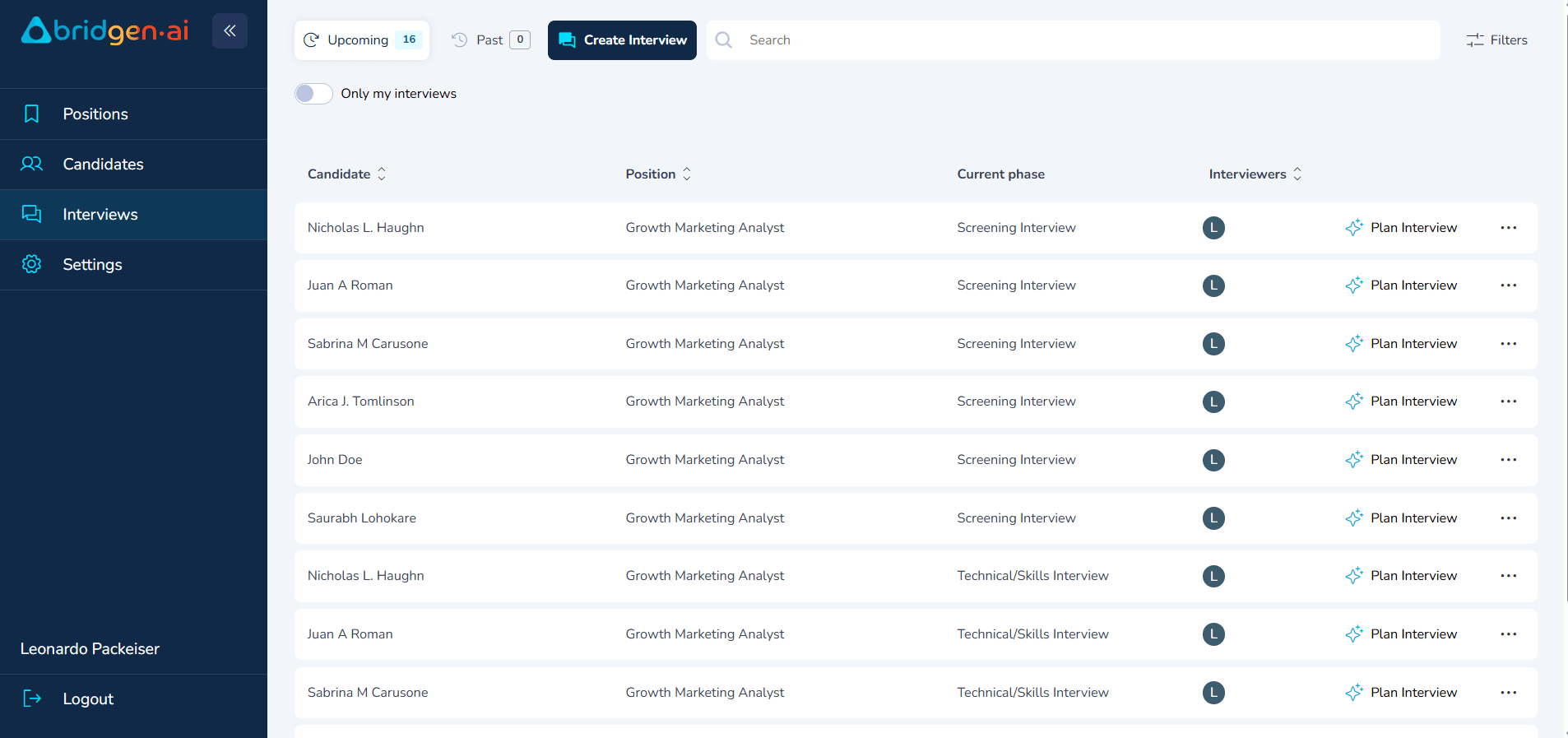
After assigning participants, go to the Interviews dashboard to view all upcoming interviews. Click “Plan Interview” to access AI-suggested questions based on the selected skills and finalize your question set.
1.4 Plan Your Interview Questions
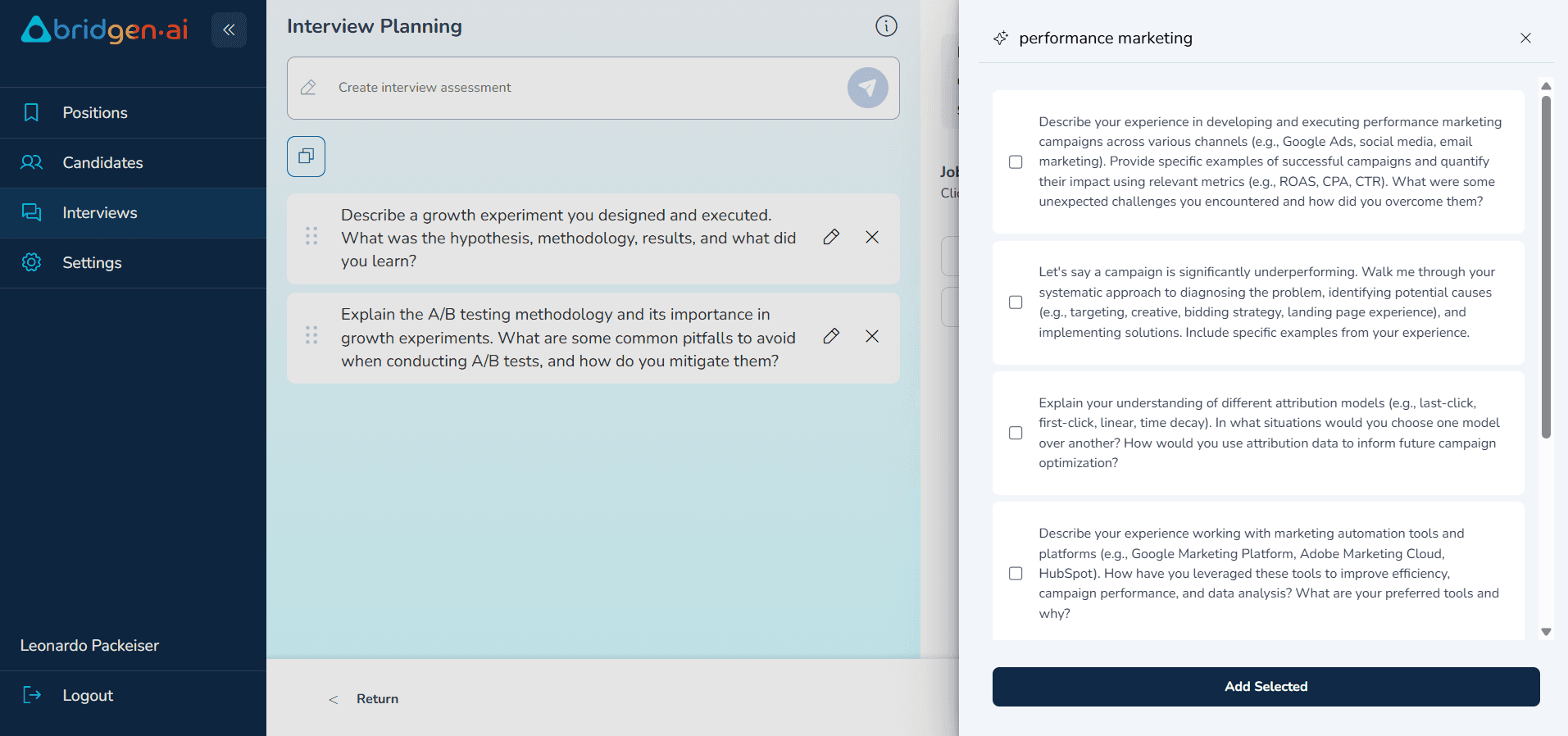
This is the moment to define the questions you will ask during the interview. In this screen, Bridgen combines the selected skills with contextual data — such as the candidate’s resume and the role description — to help you identify the most relevant areas to explore during the conversation.
On the right-hand side, you’ll see the skills assigned to this interview phase. Click on each skill to generate AI-suggested questions, or write your own manually.
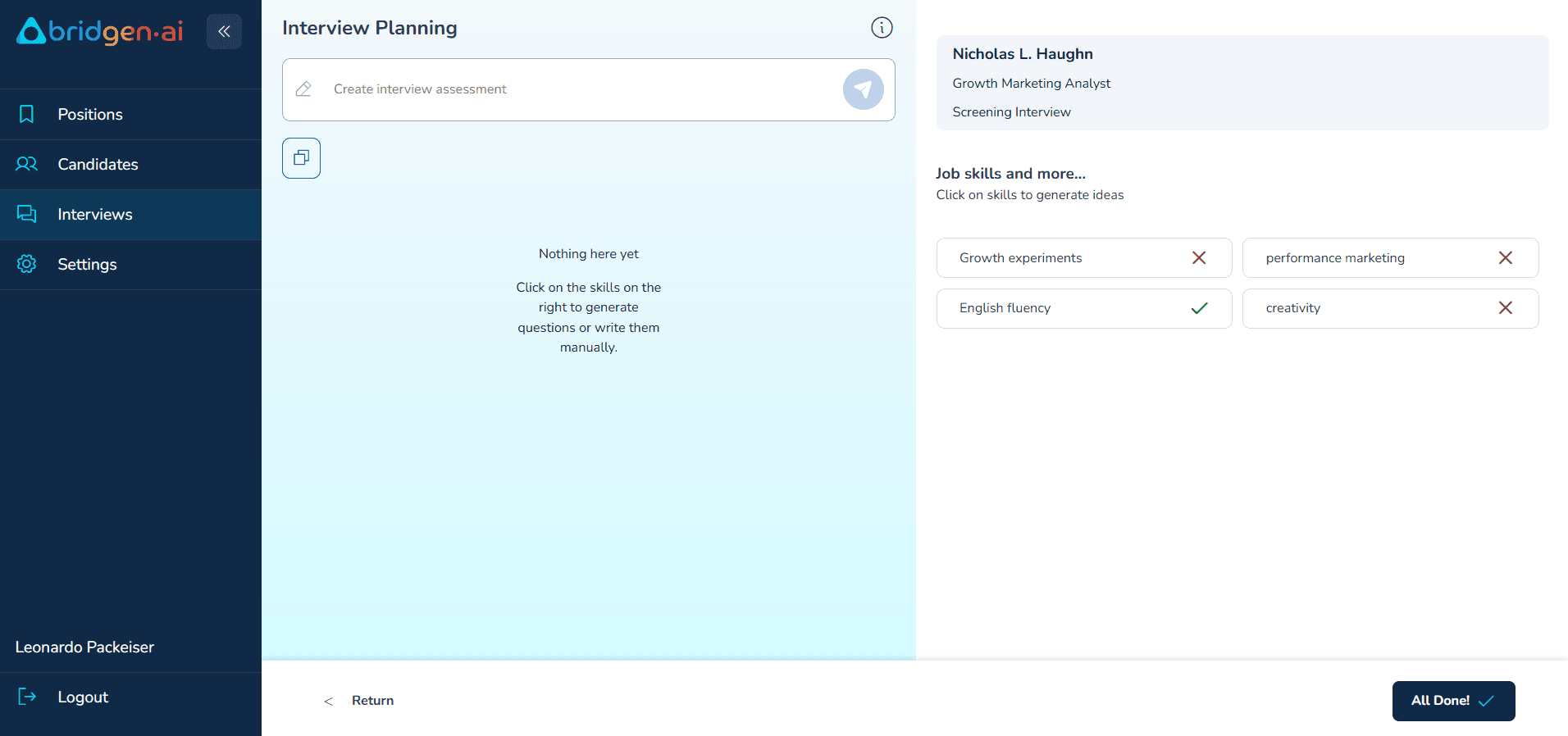
When planning your interview, click on any skill on the right to view AI-suggested questions. You can select as many as you like, depending on the level of depth you want for that interview.
Once selected, click “Add Selected” to include them in your interview plan.
2. Enable transcription capture
The Bridgen platform consists of two main elements: the platform itself, where operational information is entered, and the Bridgen Extension, which functions as an auxiliary tool for the platform process.
2.1. Installing the Extension
To install the extension on Google Chrome, first, access Bridgen version through the URL below:
You will be redirected to the Bridgen page on the Chrome Web Store.
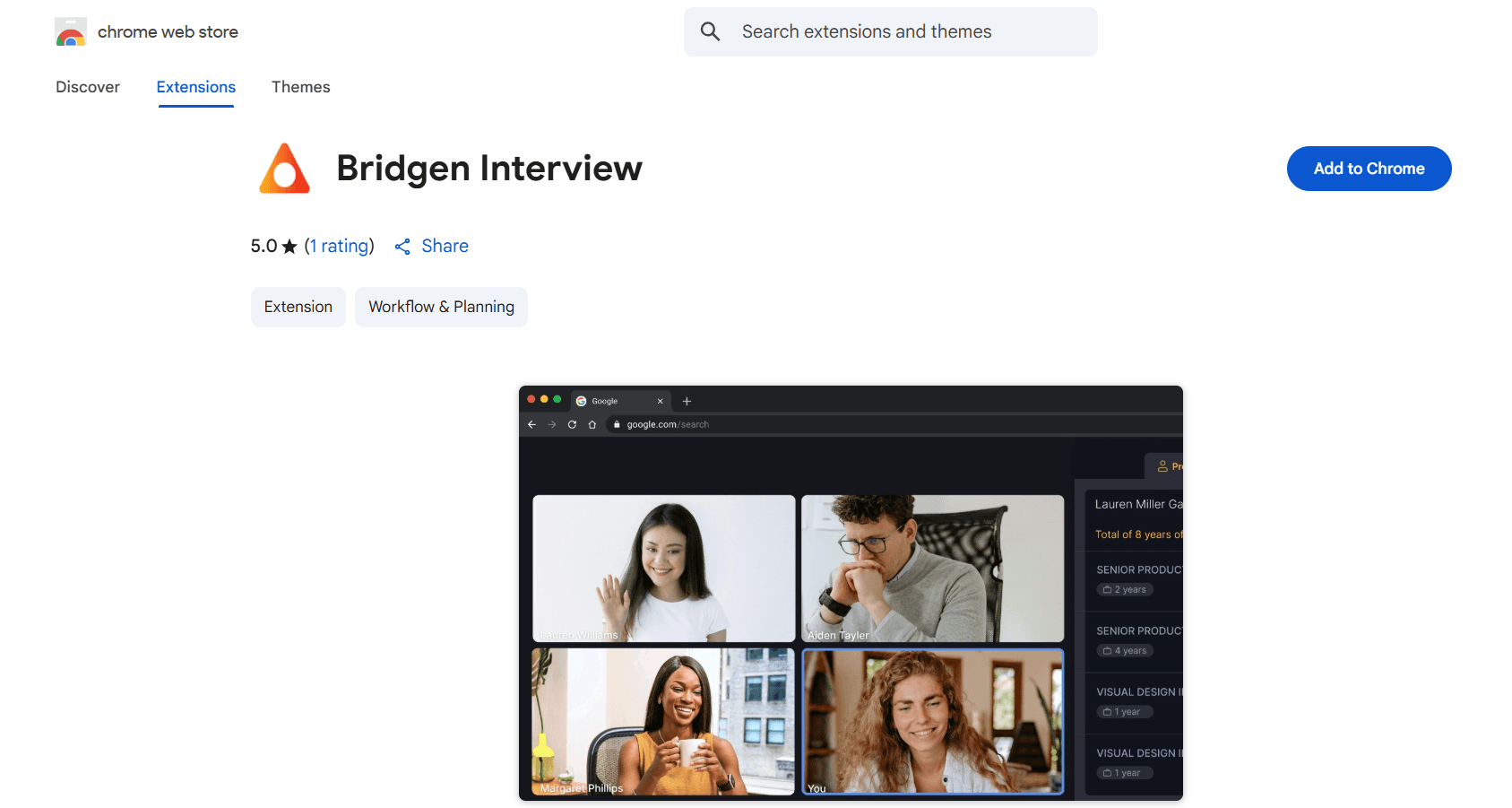
To install the extension on your Google Chrome, simply click the "Add to Chrome" button. The setup will be automatically performed by Google Chrome.
2.2. Pinning the Extension on Google Chrome (Recommended)
After installing the extension, it is recommended to pin it to your Google Chrome. To do this, click on the "Extensions" button (Figure 5), located on the right side of your navigation bar.

When clicking the "Extensions" button, a list of installed extensions will be displayed. Select the Bridgen extension and click the "Pin" button.

Once this is done, the extension will always be available on the right side of your browser (Figure 7).

2.3. Running the Extension
Start an interview session by clicking on the Bridgen extension icon. Doing so will display the sidebar in your Chrome browser. Enter your login and password, and you will be automatically redirected to the interview selection screen.
2.4. Captions and Language
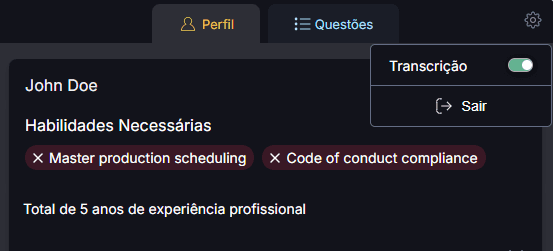
For the Bridgen platform to capture your conversation with the candidate, captions (Closed Caption) must be enabled. By default, when starting a conference on Google Meet, captions will be automatically enabled, but they can also be manually turned on or off by clicking the "Settings" button. This option is available in the "Transcription" tab of the extension.
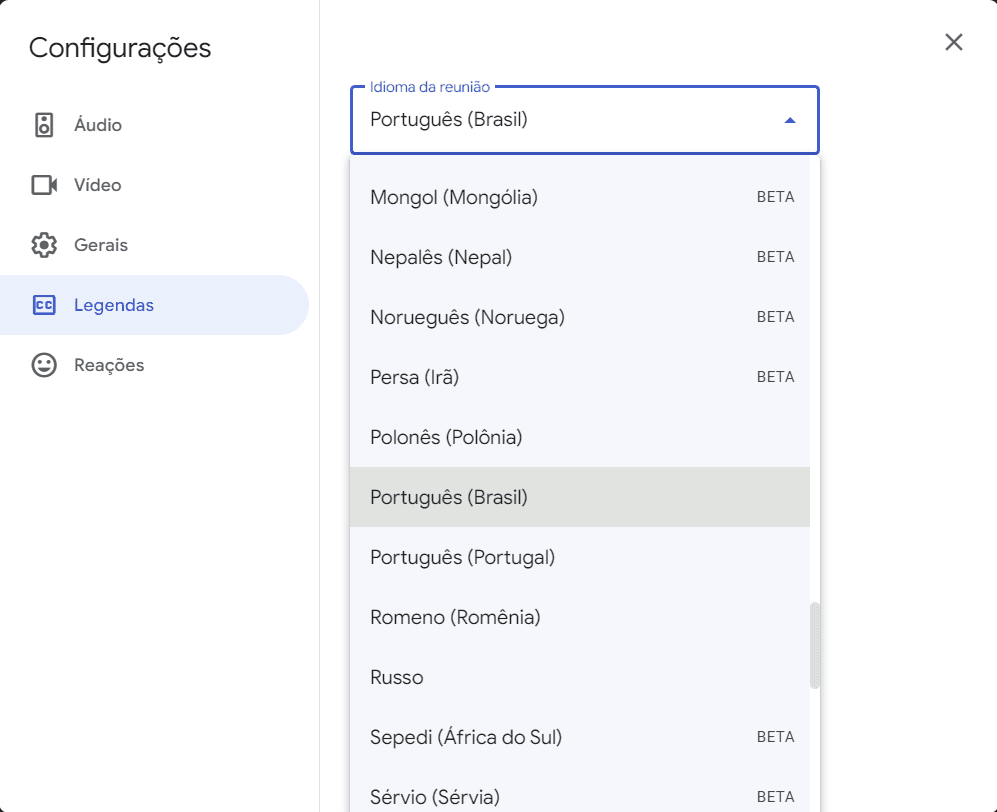
If the interview is conducted in a different language, you may need to manually adjust the caption language in Google Meet. To do this, click the "More" button at the bottom of the screen and select "Settings" (see the image below).
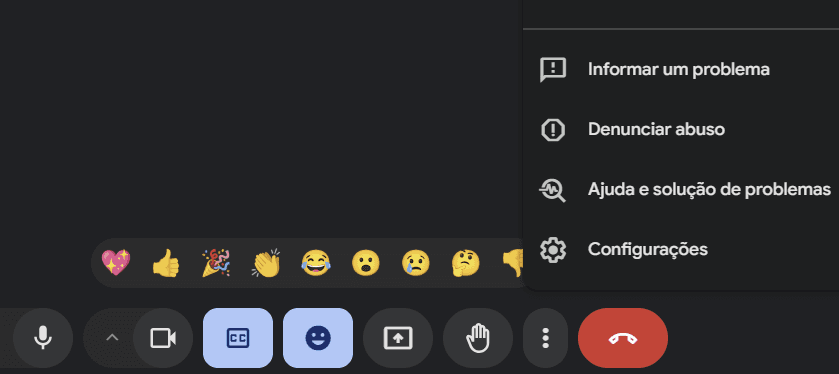
Once the settings screen is displayed, locate the "Captions" option. On this screen, you can choose the correct language for your conversation.
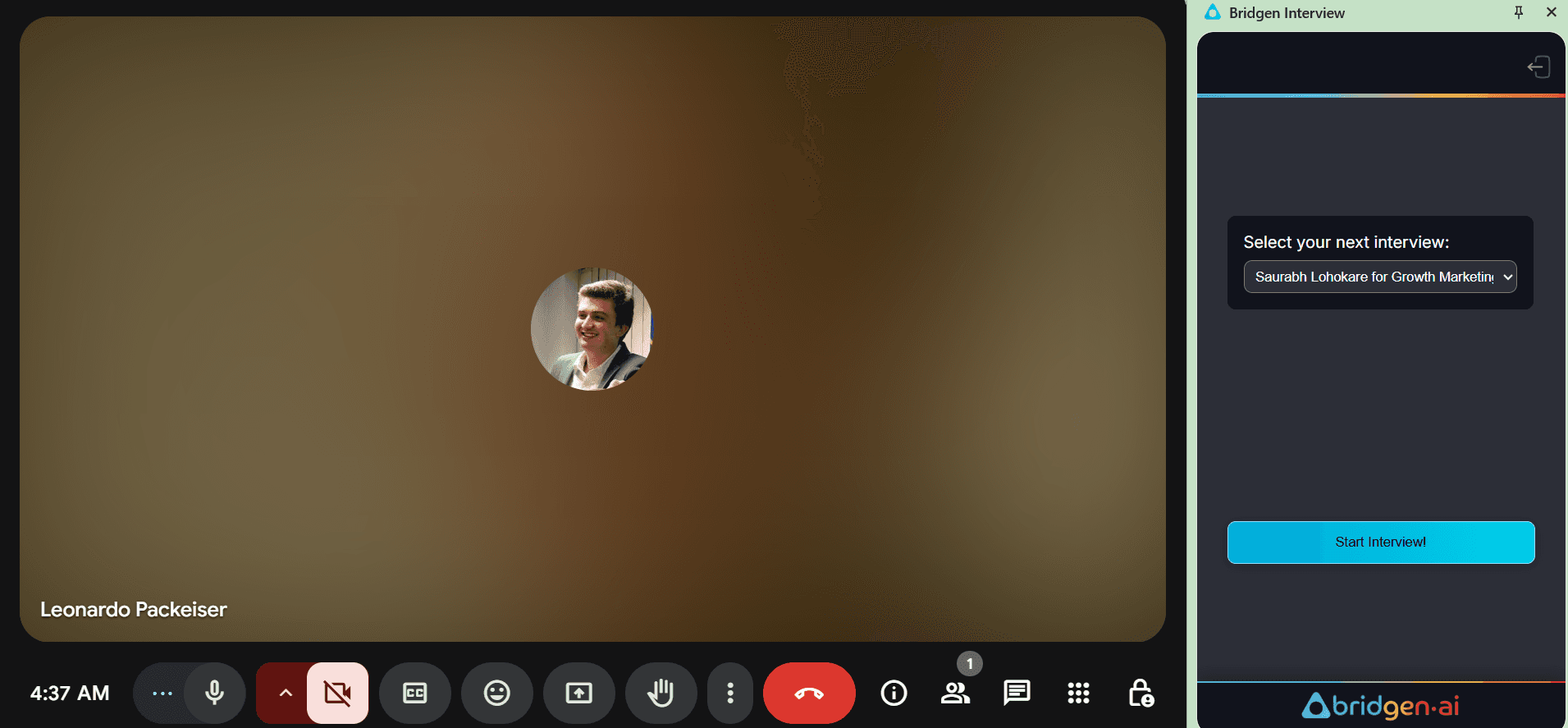
After launching the extension, select the candidate from the interview list and click “Start Interview” to begin the transcription process.
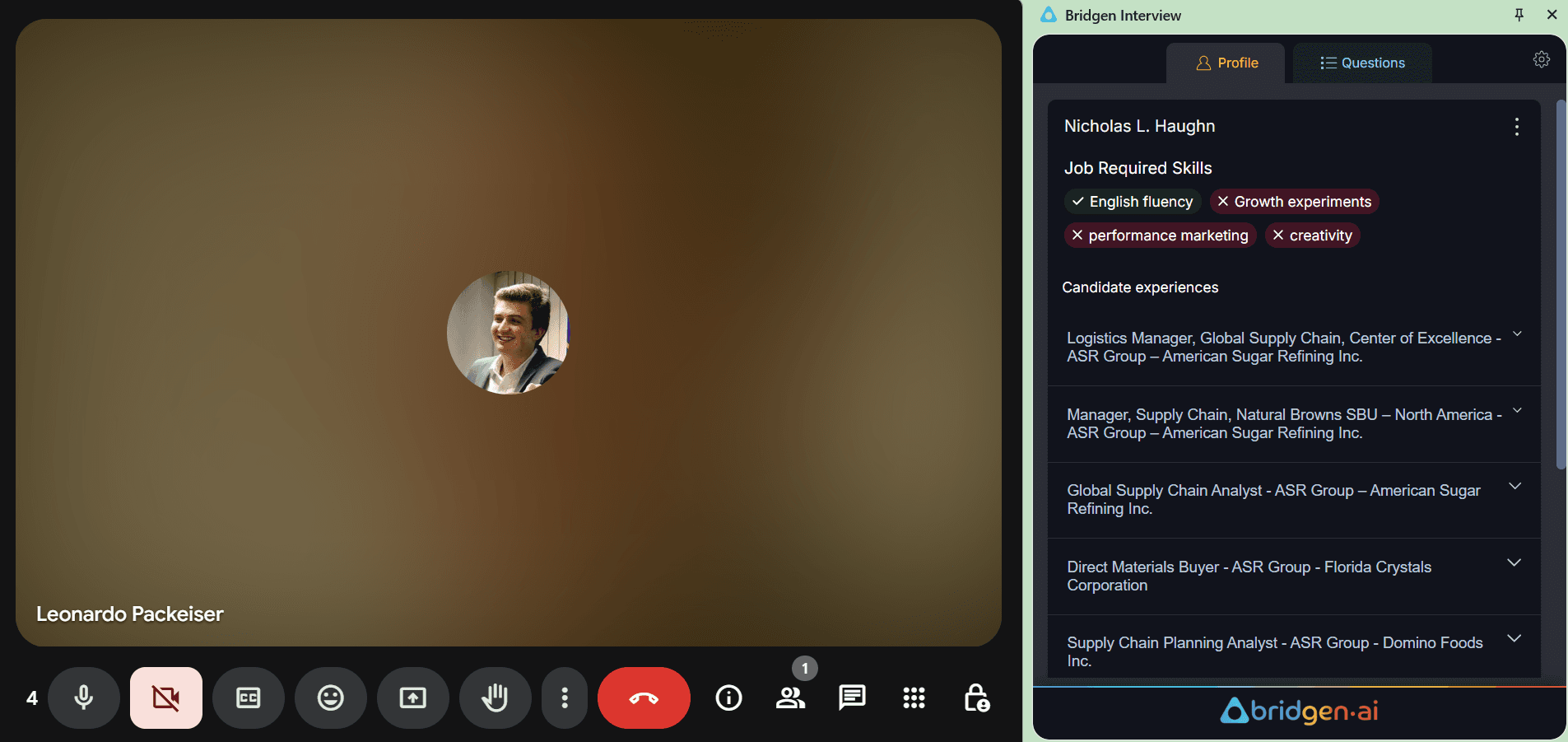
During the interview, the sidebar displays the key skills to assess and a summary of the candidate’s past experiences. You can expand each section to review their résumé if needed.
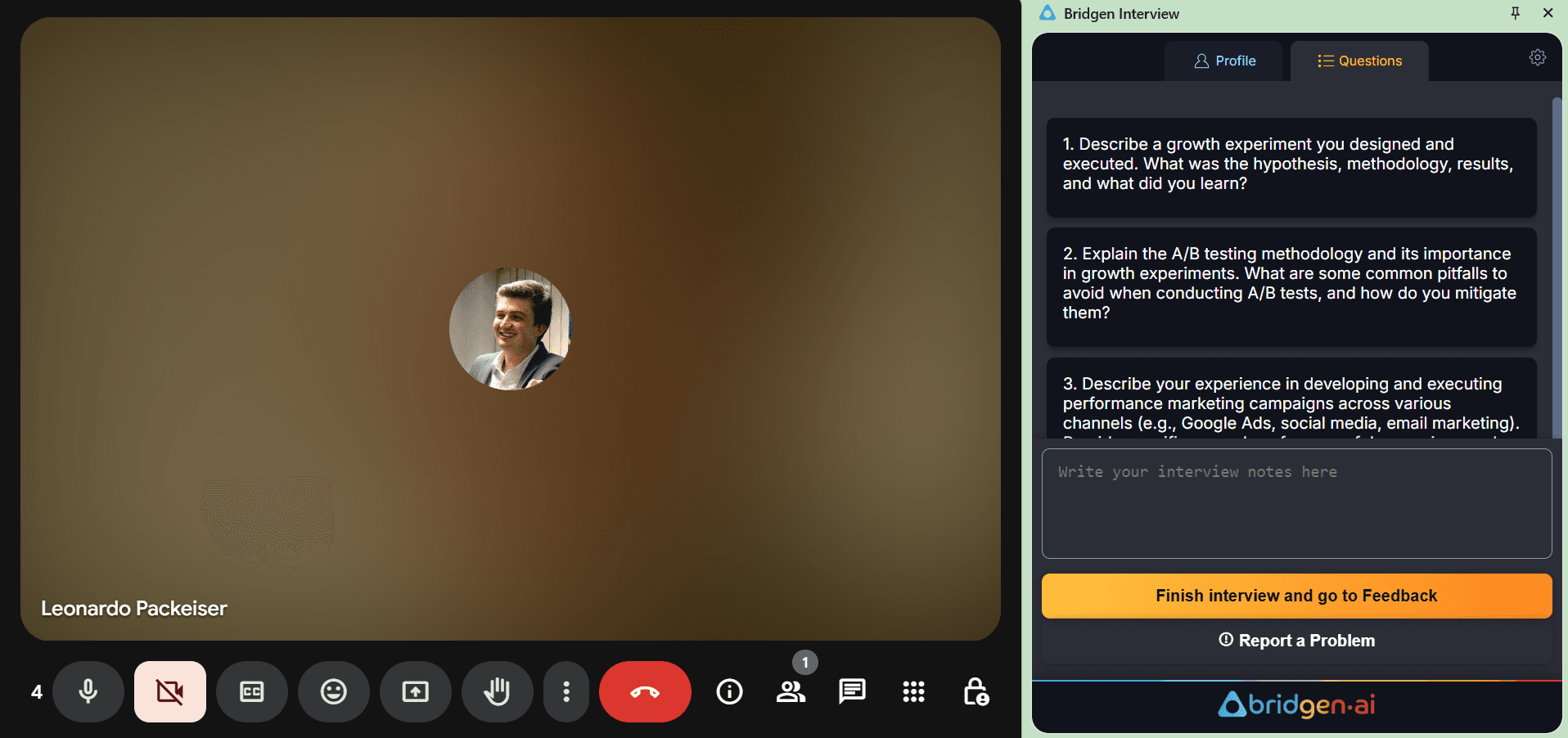
Use this view to follow the suggested questions, take live notes, and click “Finish interview and go to Feedback” when the session ends.
3. Evaluate your candidates
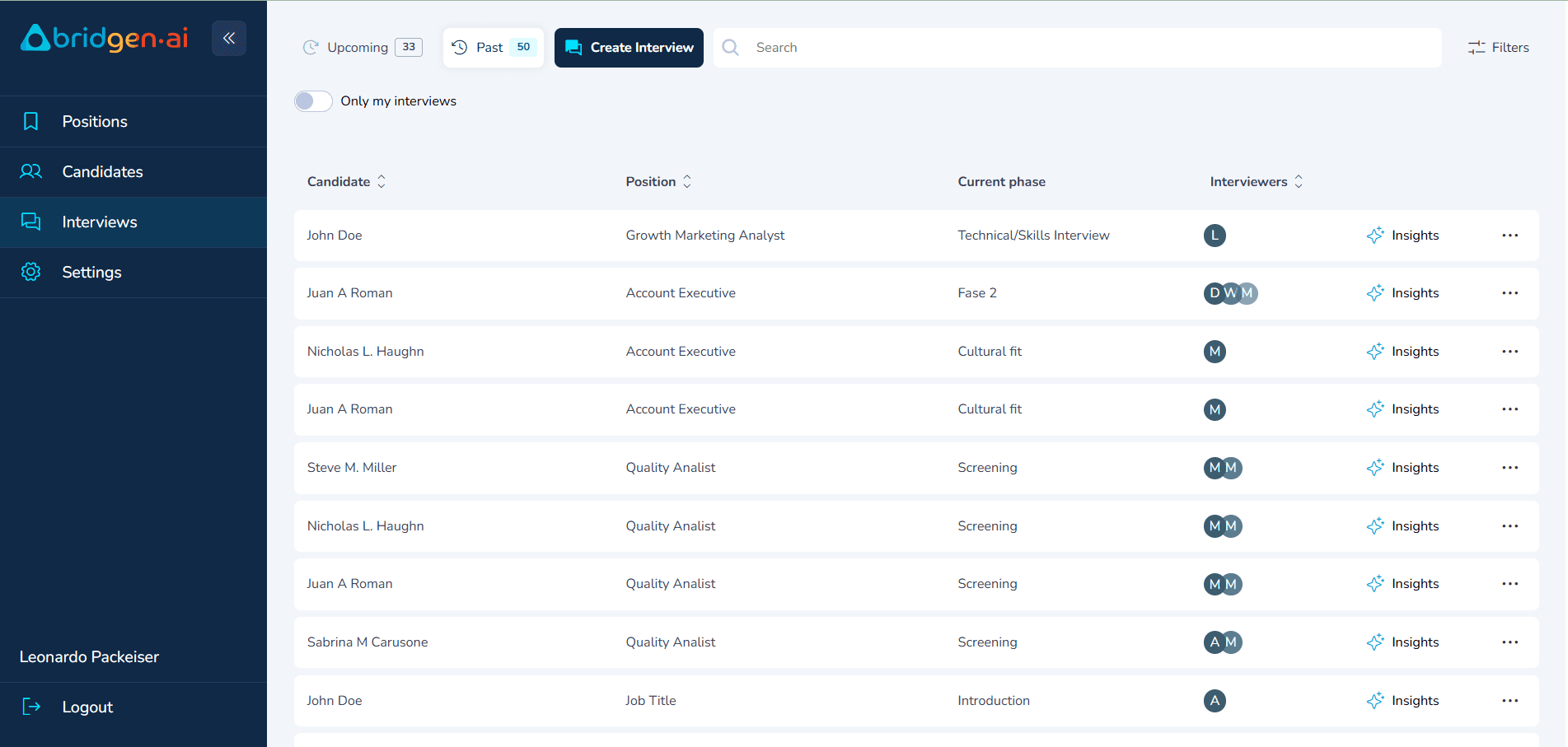
After completing an interview, go to the “Past” tab to access its details. There, you can review the transcription, check the automated reports, and leave your score and feedback comments for the candidate.
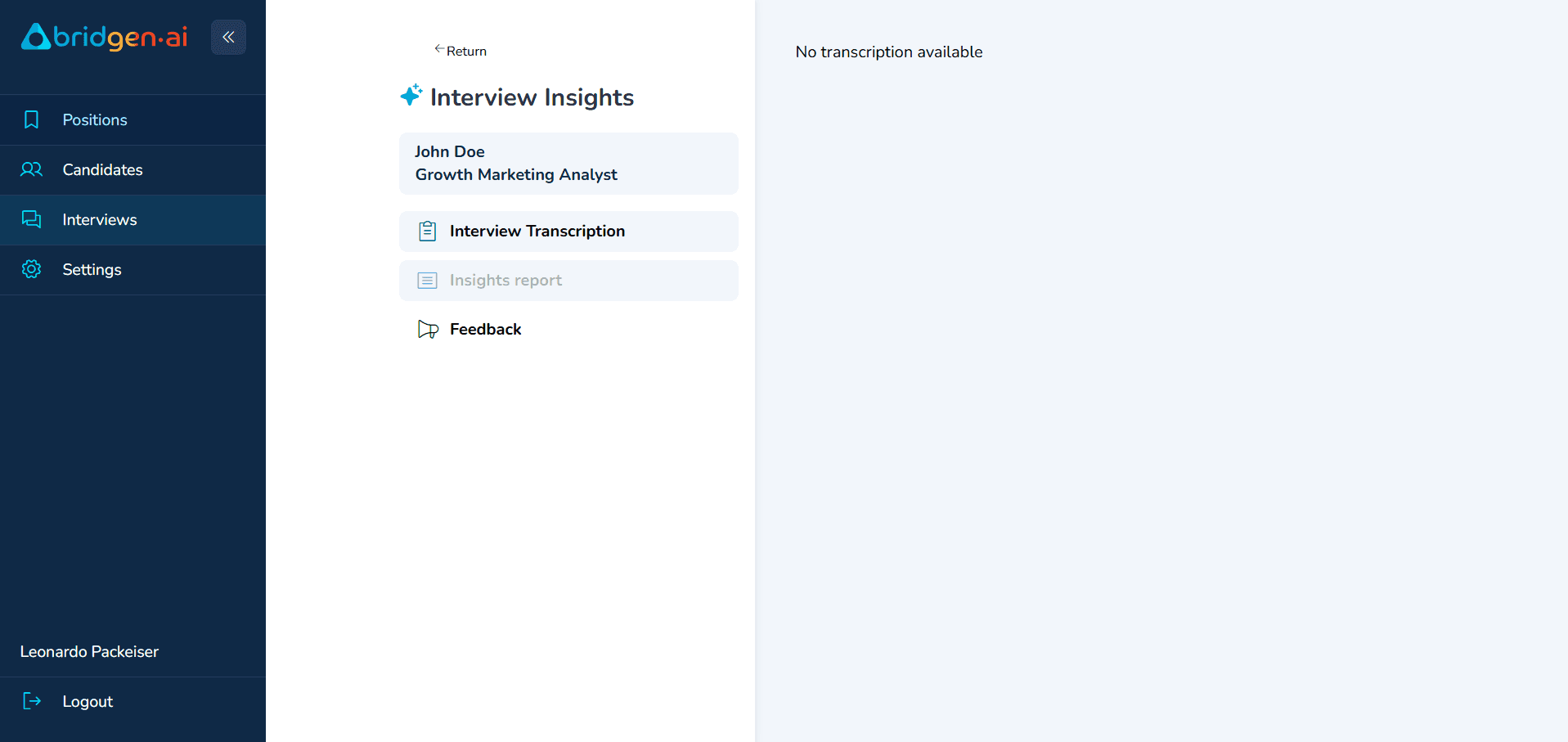
In this screen, you can access the full Interview Transcription and click on Insights Report to evaluate the candidate’s performance from multiple perspectives — such as communication, technical depth, and alignment with required skills.
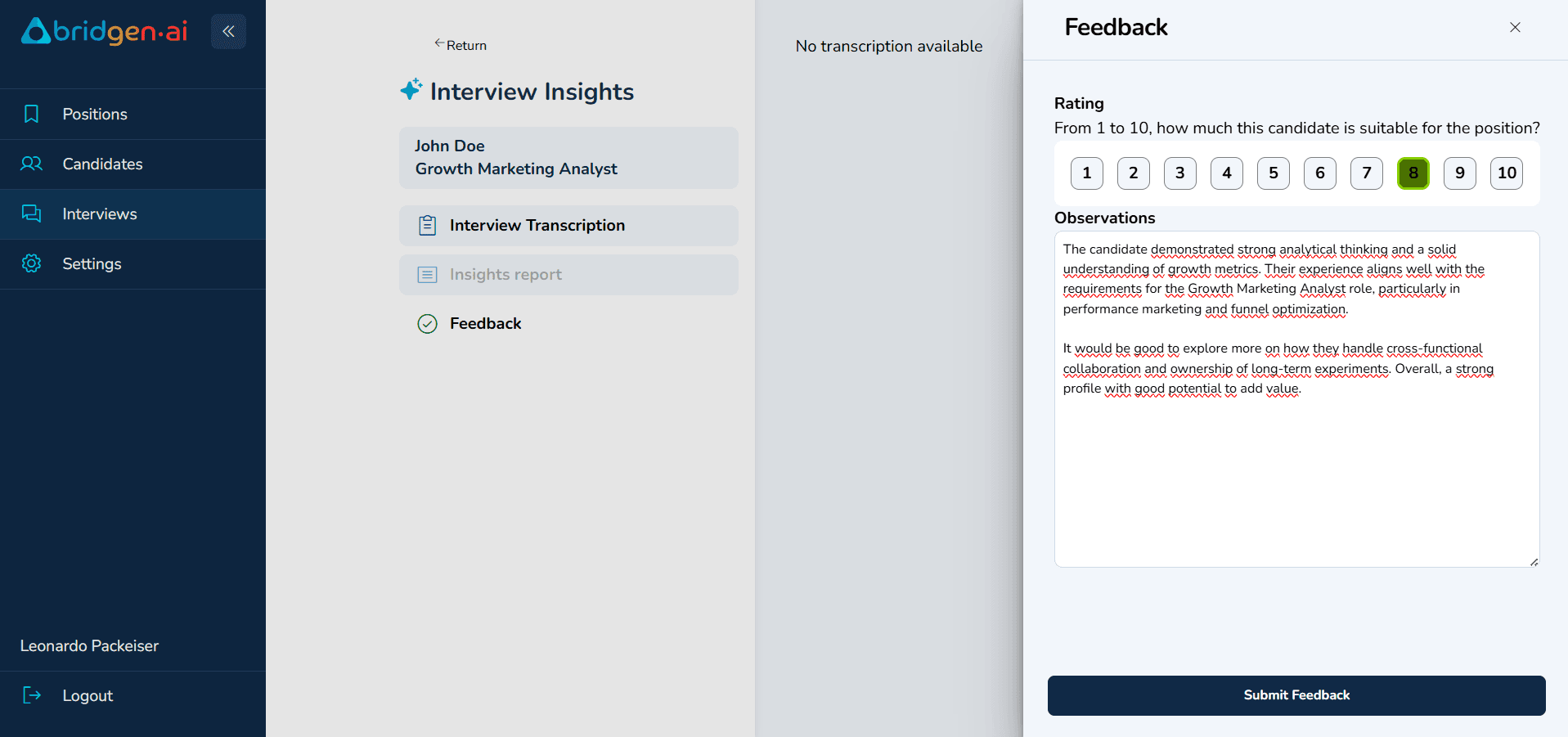
After reviewing the transcription and insights, you can rate the candidate from 1 to 10 based on their fit for the position. This score will help rank the candidate within the selection process. You can also add written observations to support your evaluation before clicking “Submit Feedback.”
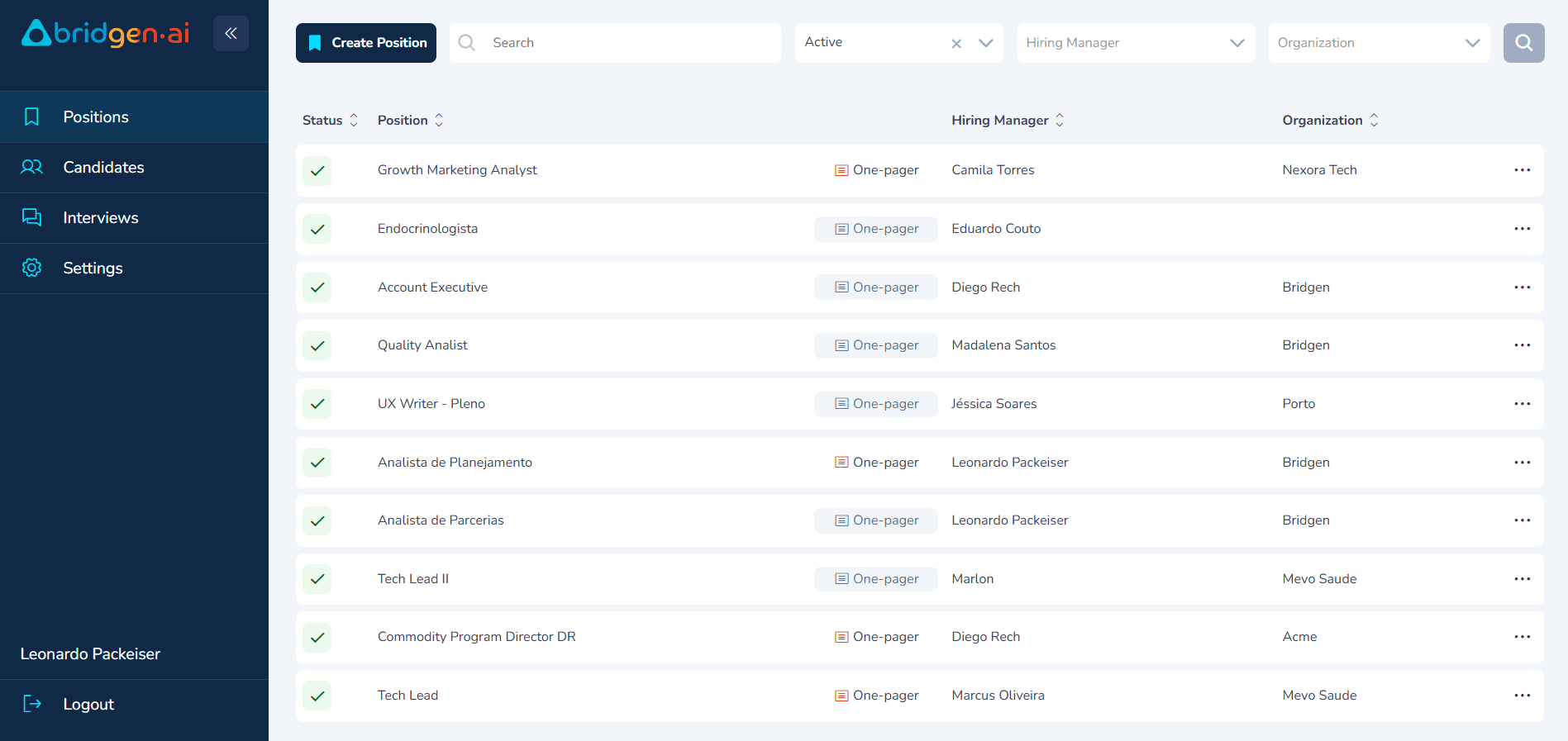
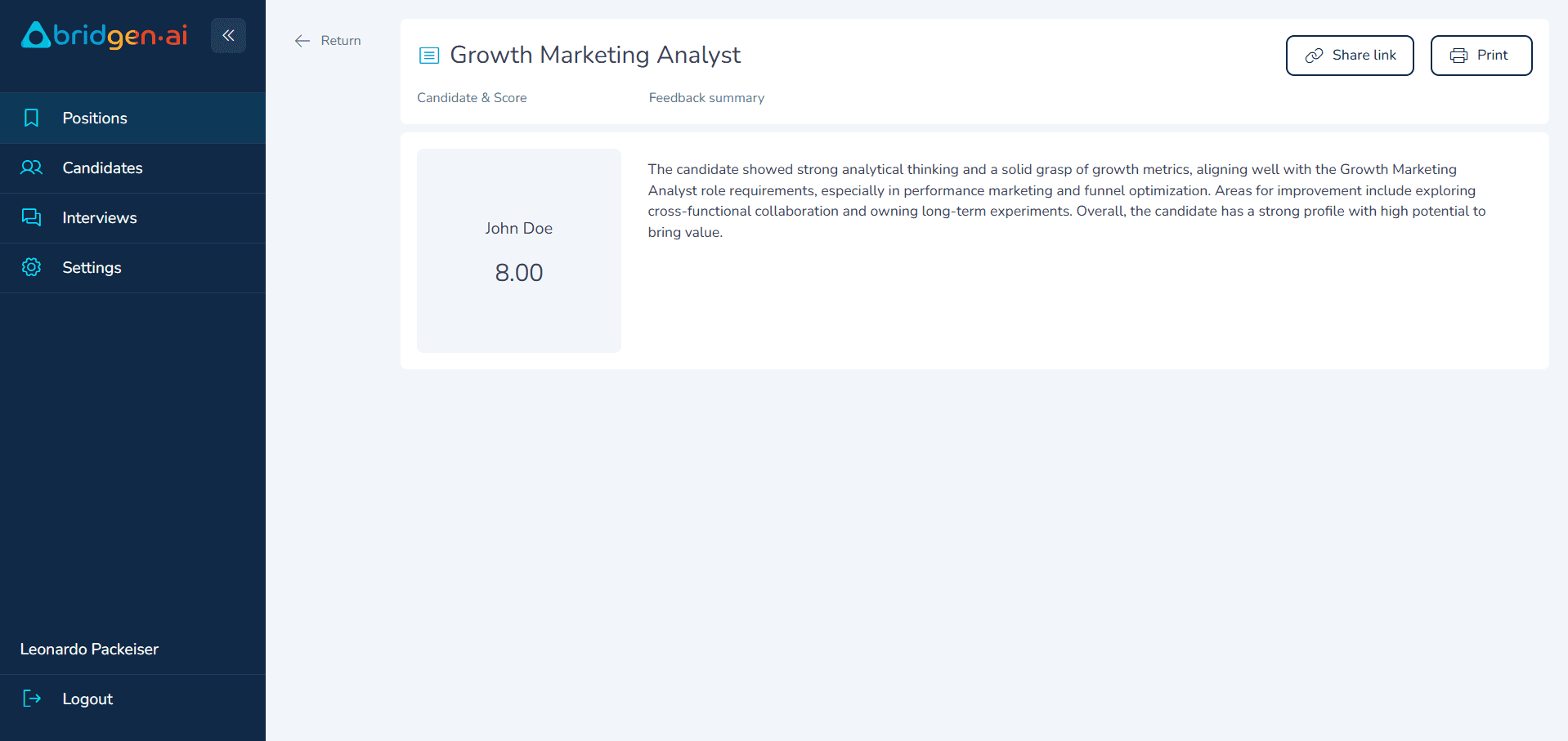
To review the average score and feedback from all interviewers for a specific role, go to the Positions page and click on the “One-pager” button next to the job title.
This screen shows the average score the candidate received across all evaluations, along with a summary of feedback left by interviewers. It helps hiring managers quickly understand overall candidate performance and identify strengths and areas for improvement. You can also share or print this view if needed.
Support
For more information, questions, or support, contact the Bridgen support team or one of our team members:
© Bridgen.AI, 2025 - Silicon Valley, CA