Basics
Getting Started
Apr 23, 2025
Introduction
This document contains essential instructions for accessing the Bridgen platform, as well as important guidelines on configuring and installing auxiliary tools that will support the main process.
1. Accessing the Platform
1.1. Platform Access
The Bridgen platform is available at the address below. For optimal use, we recommend using Google Chrome as your browser of choice.
1.2. First Login
Upon the first login, the authentication screen shown below (Figure 1) will be displayed. Enter the username and password provided by the Bridgen team to access the platform.

During your first login, you will be required to change the password provided by the Bridgen team to a personal password (Figure 2). Re-enter the password provided by the Bridgen team and set a new password. A strong password is required to proceed.
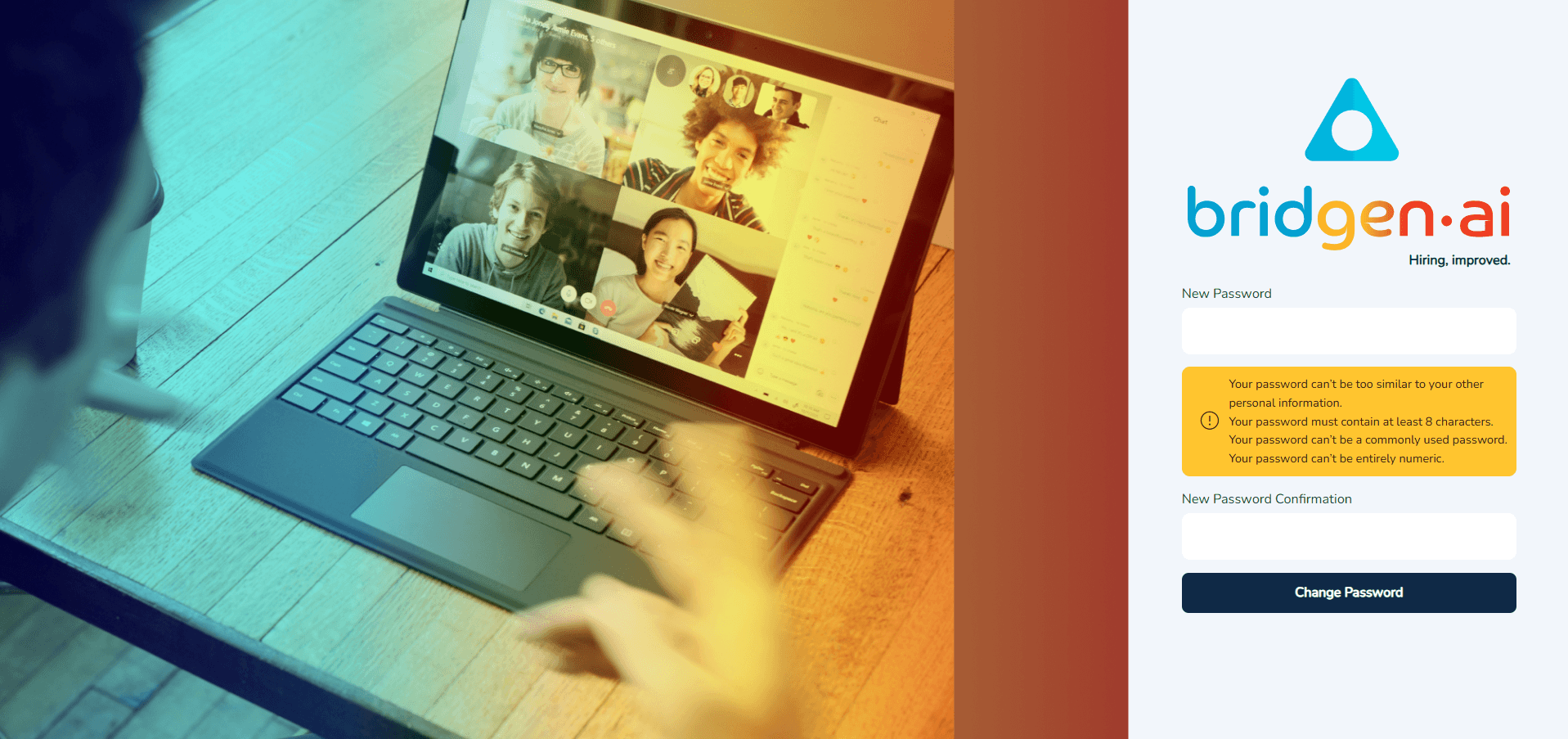
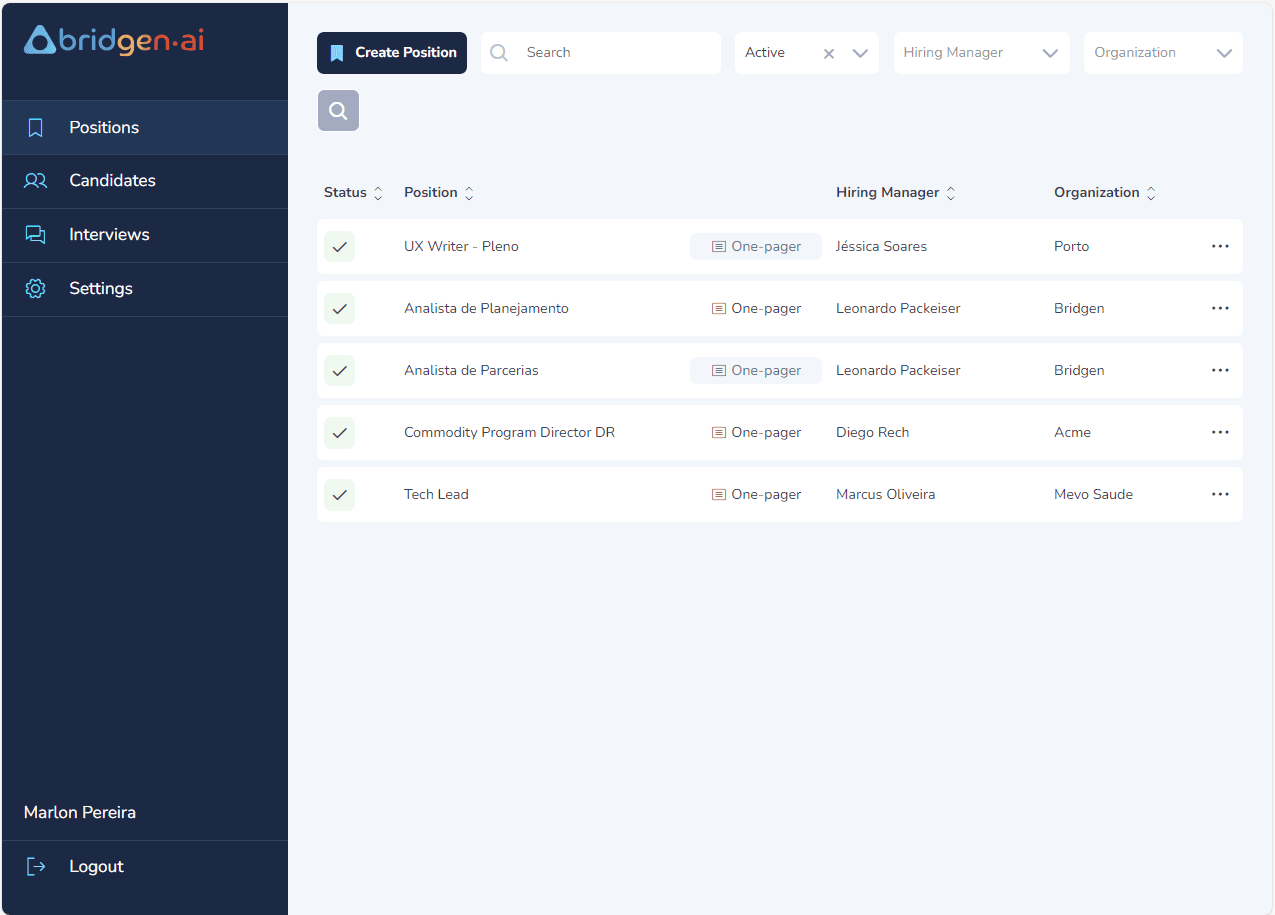
Once your password is accepted, you will be redirected to the Bridgen platform's home screen (Figure 3).
2. Chrome Extension
The Bridgen platform consists of two main elements: the platform itself, where operational information is entered, and the Bridgen Extension, which functions as an auxiliary tool for the platform process.
2.1. Installing the Extension
To install the extension on Google Chrome, first, access Bridgen version through the URL below:
You will be redirected to the Bridgen page on the Chrome Web Store (Figure 4).
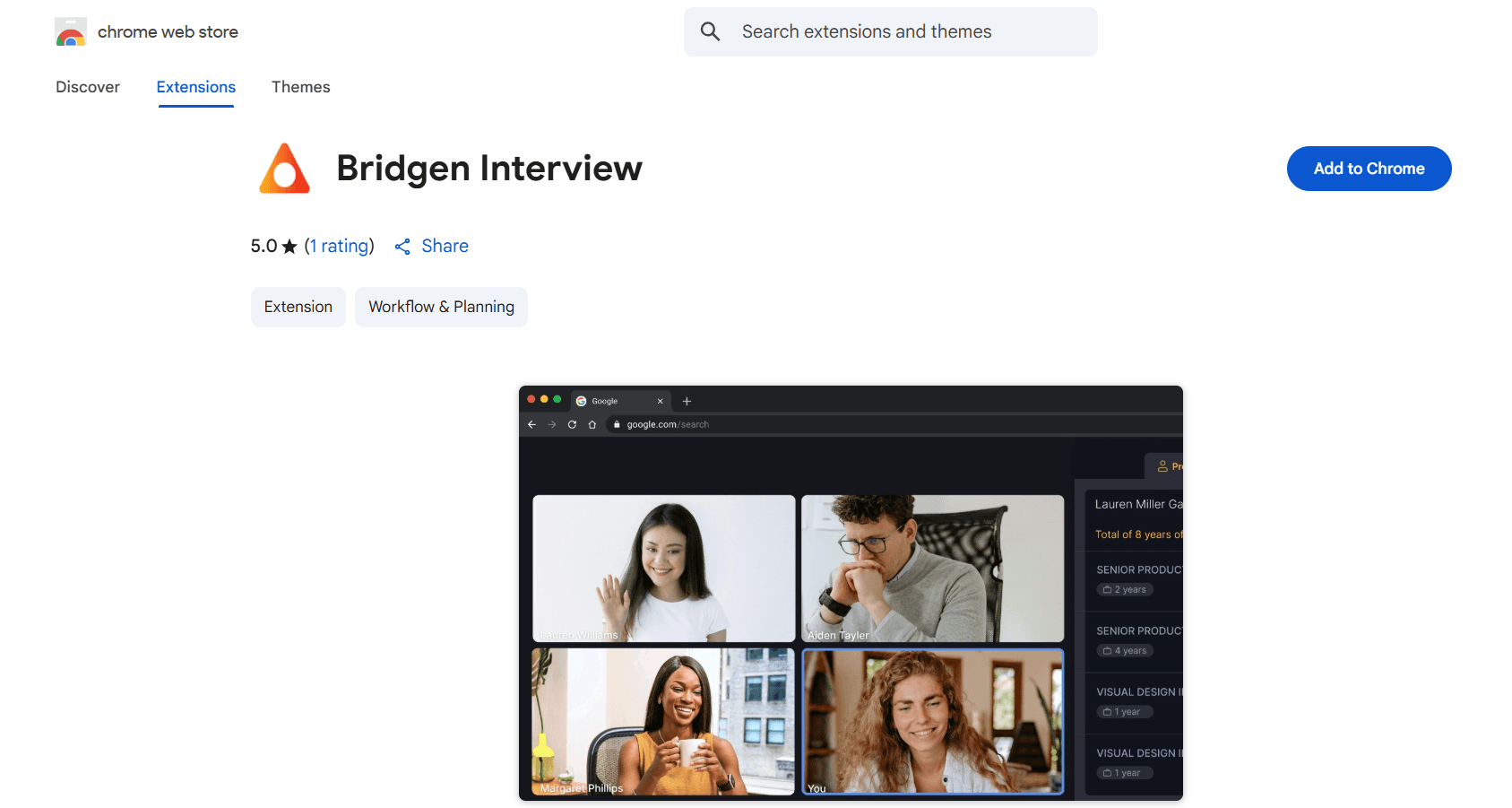
To install the extension on your Google Chrome, simply click the "Add to Chrome" button. The setup will be automatically performed by Google Chrome.
2.2. Pinning the Extension on Google Chrome (Recommended)
After installing the extension, it is recommended to pin it to your Google Chrome. To do this, click on the "Extensions" button (Figure 5), located on the right side of your navigation bar.

When clicking the "Extensions" button, a list of installed extensions will be displayed. Select the Bridgen extension and click the "Pin" button (Figure 6).

Once this is done, the extension will always be available on the right side of your browser (Figure 7).

2.3. Running the Extension
Start an interview session by clicking on the Bridgen extension icon. Doing so will display the sidebar in your Chrome browser (Figure 9). Enter your login and password, and you will be automatically redirected to the interview selection screen.
2.4. Captions and Language
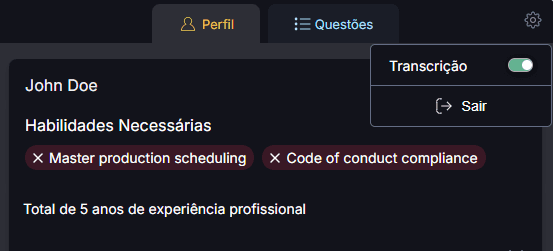
For the Bridgen platform to capture your conversation with the candidate, captions (Closed Caption) must be enabled. By default, when starting a conference on Google Meet, captions will be automatically enabled, but they can also be manually turned on or off by clicking the "Settings" button. This option is available in the "Transcription" tab of the extension.
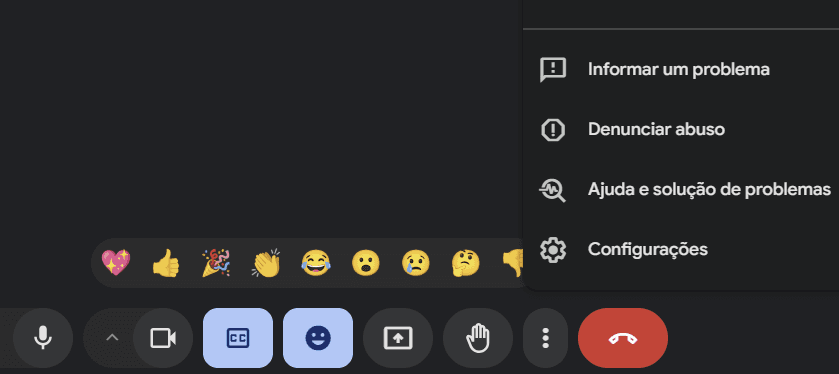
If the interview is conducted in a different language, you may need to manually adjust the caption language in Google Meet. To do this, click the "More" button at the bottom of the screen and select "Settings" (see the image below).
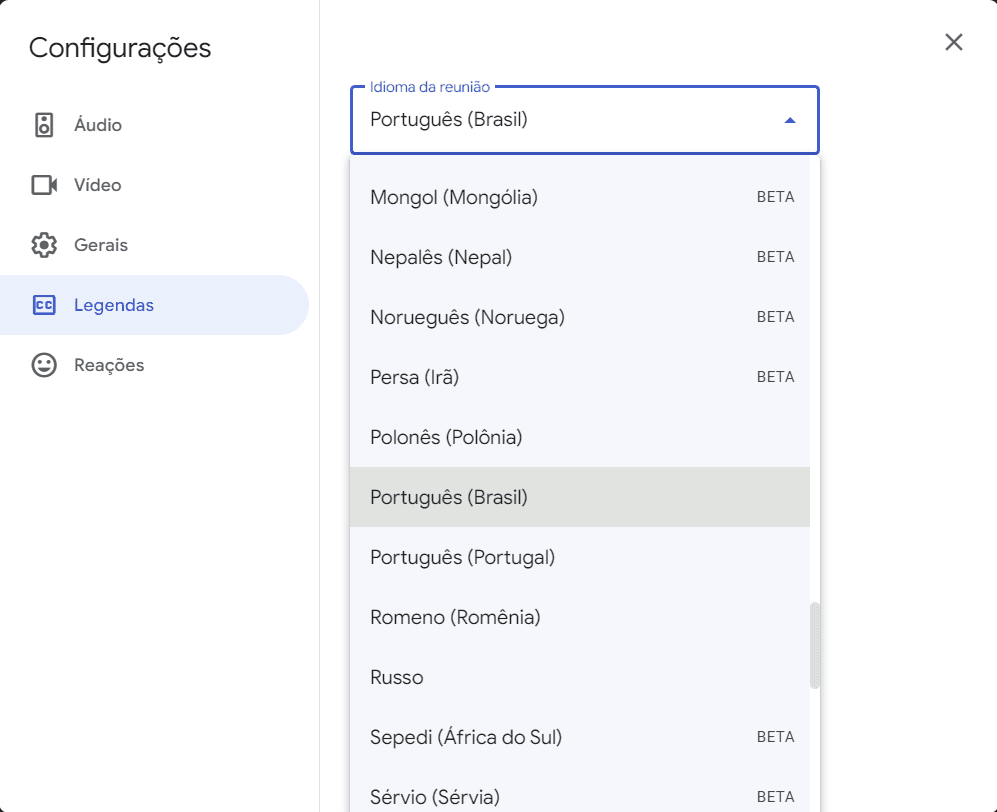
Once the settings screen is displayed, locate the "Captions" option. On this screen, you can choose the correct language for your conversation.
3. Creating and Managing Users in Bridgen
3.1 How to add a new user
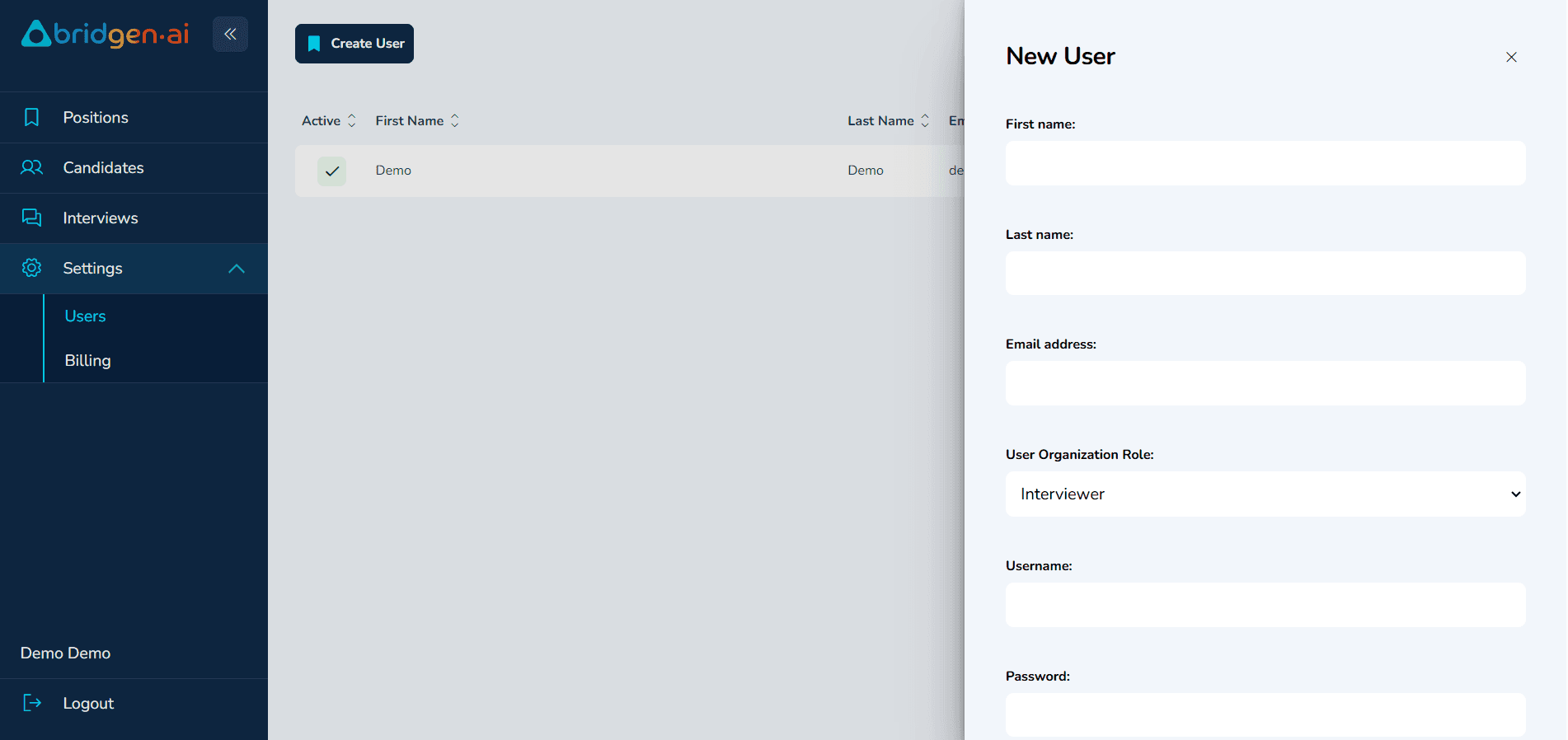
Managing your team within Bridgen is quick and easy. Go to the Settings tab in the left-hand menu. To get started, navigate to the Settings tab in the left-hand menu and follow the steps below to create a new user in your organization.
Click on Users to view the current list of users.
Press the Create User button in the upper-left corner.
Fill in the required information:
Name: First and last name of the user
Email address: The user’s corporate email
User organization role: Choose between Interviewer, Recruiter, or Admin (see section 3.2 for role details)
Username: The desired login username
Password: Set a temporary password (users can change it later)
After completing all fields, confirm the user creation.
3.2 Understanding user roles
Bridgen offers three distinct user roles, each with specific permissions and responsibilities. Assigning the correct role ensures secure and efficient use of the platform:
Recruiter Admin
This is the owner of the account. The Recruiter Admin has full control:Can create and delete users
Manages billing and subscription
Has access to all features, including candidate and interview management
Recruiter
This user actively manages the hiring process:Can create job positions, interviews, and candidates
Can view and evaluate interview results
Interviewer
This role is focused on participating in interviews:Can access assigned interviews
Can conduct and evaluate interviews
Cannot create or manage positions, candidates, or interviews
Support
For more information, questions, or support, contact the Bridgen support team or one of our team members:
© Bridgen.AI, 2025 - Silicon Valley, CA